 O Caption
Transcribe audio to text offline in DaVinci Resolve (Whisper)
Turn speech into text on your own machine, with no upload and no subscription, and use it as captions in DaVinci Resolve.
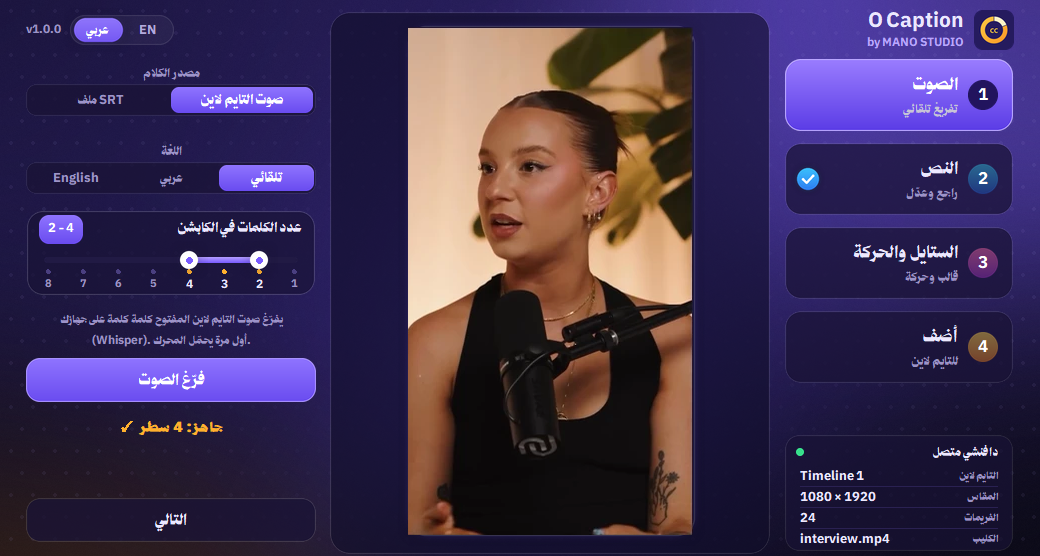
Manual transcription takes hours. Online services are faster but upload your audio and usually need a subscription. The third way: the Whisper engine running on your own machine.
Why Whisper?
- Supports Arabic and English and detects the language.
- Times every word, so word-by-word captions are precise.
- Works offline after the first engine download; your audio never leaves your computer.
Steps
- Open the timeline with the speech.
- In Workspace > Scripts, open O Caption.
- Choose Timeline audio and the language (or auto), then press Transcribe.
- The first time it downloads the engine; after that it runs locally.
- Review the lines, pick a template, and add.
Tips for accuracy
- Clear audio without loud music.
- A microphone close to the speaker.
- With strong dialects, check names and slang after transcribing.
💡 Have an SRT from another app? O Caption imports it and turns it into animated captions with the same templates.