 O Caption
How to add Arabic captions in DaVinci Resolve — step by step
A full guide to animated Arabic captions in DaVinci Resolve: transcription, word grouping, templates and motion — free.
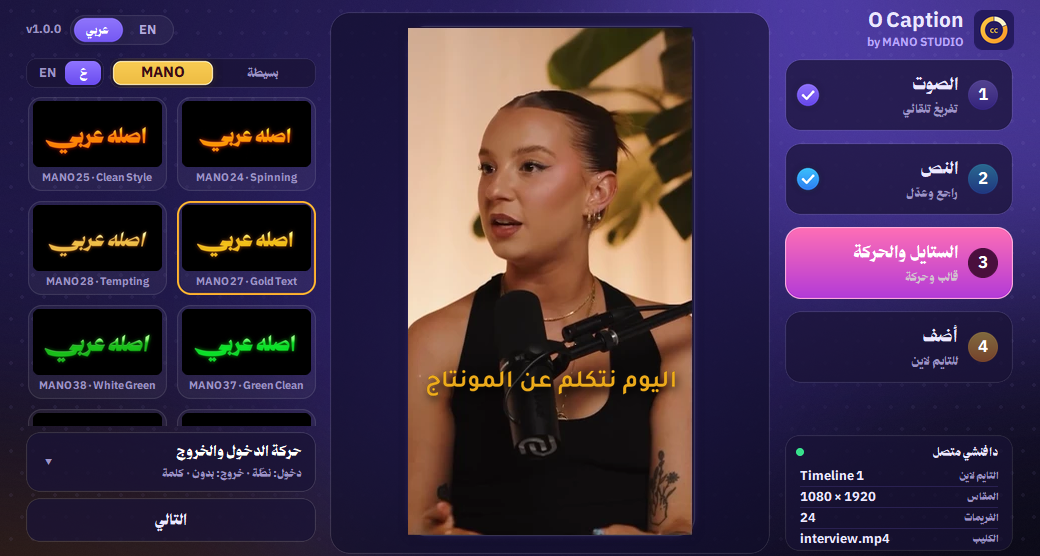
Captions are now the core of every reel: most people watch without sound, and captions keep them watching. Here is how to make pro Arabic captions in DaVinci Resolve from start to finish.
1. Prepare the timeline
Open your project on the Edit page and make sure the speech clip is on the timeline with clear audio. Lower loud music a little before transcribing for a more accurate text.
2. Turn speech into text
Instead of typing every word, use automatic transcription. The free O Caption tool transcribes the timeline audio word by word on your own machine with Whisper, and nothing is uploaded. Already have an SRT? Import it instead.
3. Choose words per caption
For fast reels, one to three words per caption keeps eyes on the speech. For longer videos and tutorials, three to six words read more comfortably.
4. Review the text
Even the best transcription misses a word or two, especially names and dialects. Check each line and move a stray word to the previous or next caption.
5. Pick a template and a move
The template sets font, colour and outline; the in / out move (fade, pop, slide, zoom) brings it to life. One clear move beats five noisy ones.
6. Add to the timeline
Captions land on their own track as regular Text+ you can edit later in the Inspector.